
Live Waiting Rooms
Live Waiting Rooms give researchers full control over when participants and clients enter Live Video Interviews and Live Group Chats. Instead of joining sessions immediately, users are placed in a Waiting Room until admitted by an Analyst or Moderator. This allows researchers to prepare, align with observers, and manage session flow before anyone enters the live environment.
How to Configure Live Waiting Rooms
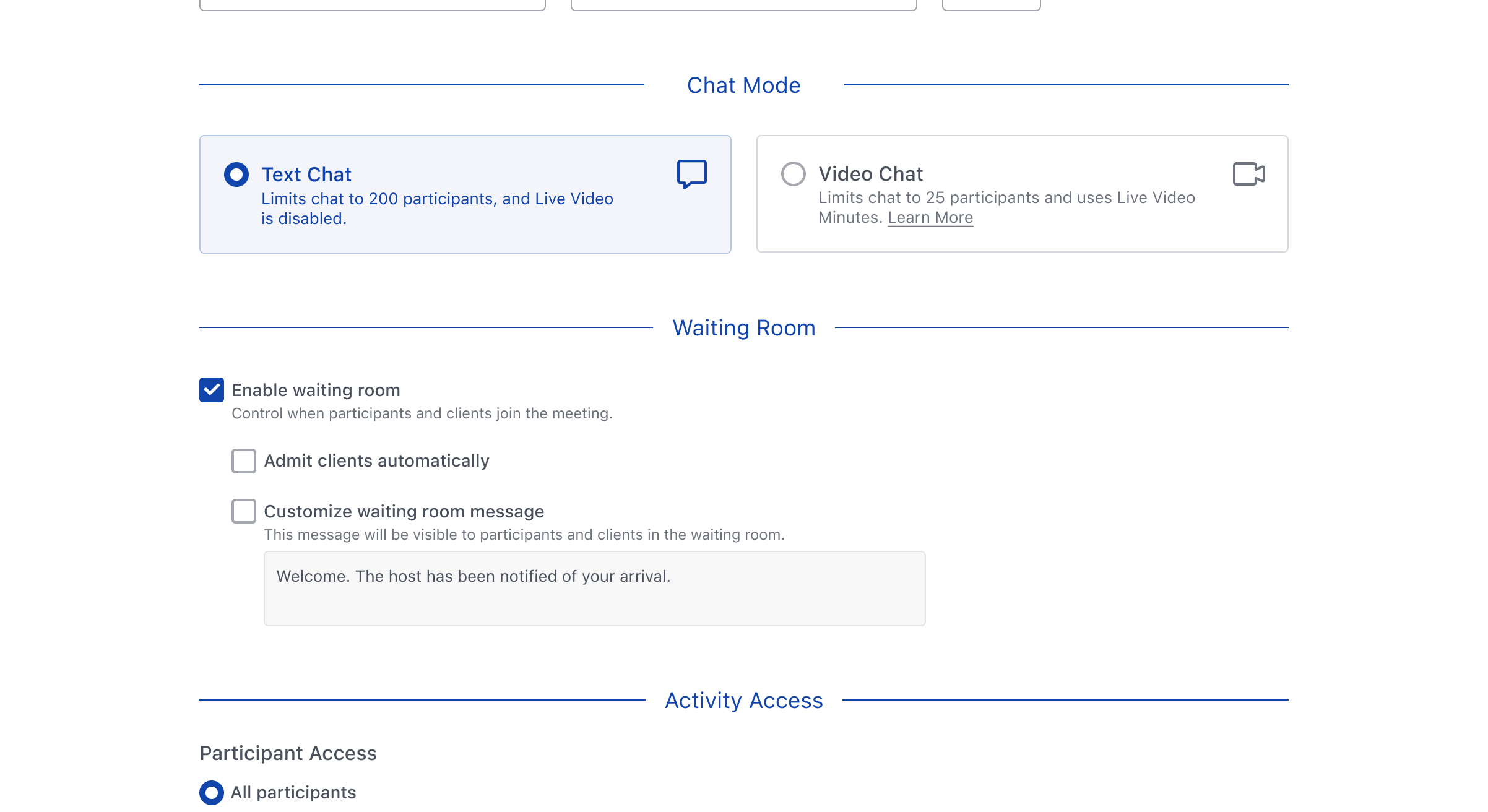
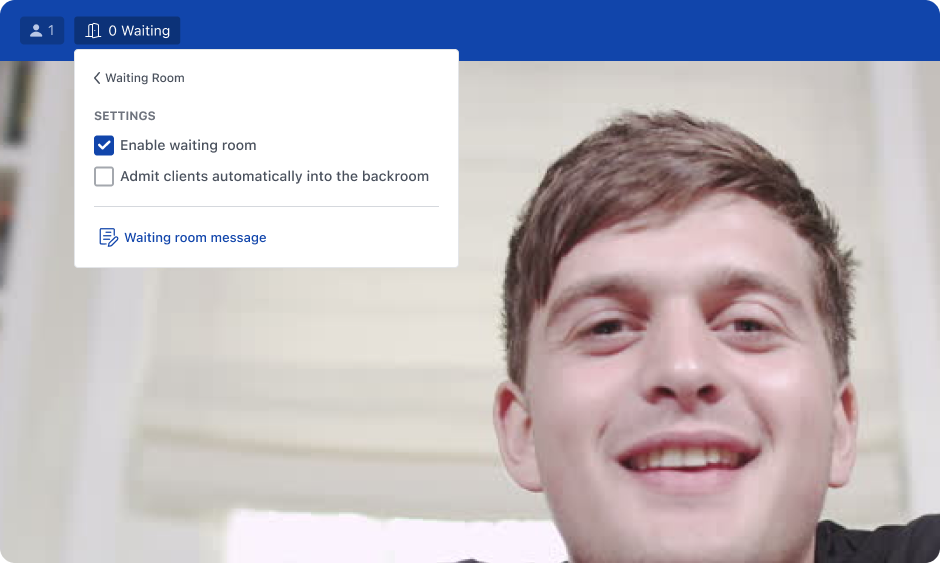
Analysts and Moderators can choose whether to enable the Waiting Room within Activity setup by clicking on Enable waiting room. When this setting is enabled, participants and Clients must be admitted before they can enter a live session. Analysts and Moderators can decide whether to Admit clients automatically or require approval before admission.
Researchers can also customize the Waiting Room message. Content added here will be displayed to all guests while they remain in the Waiting Room.
Joining a Meeting
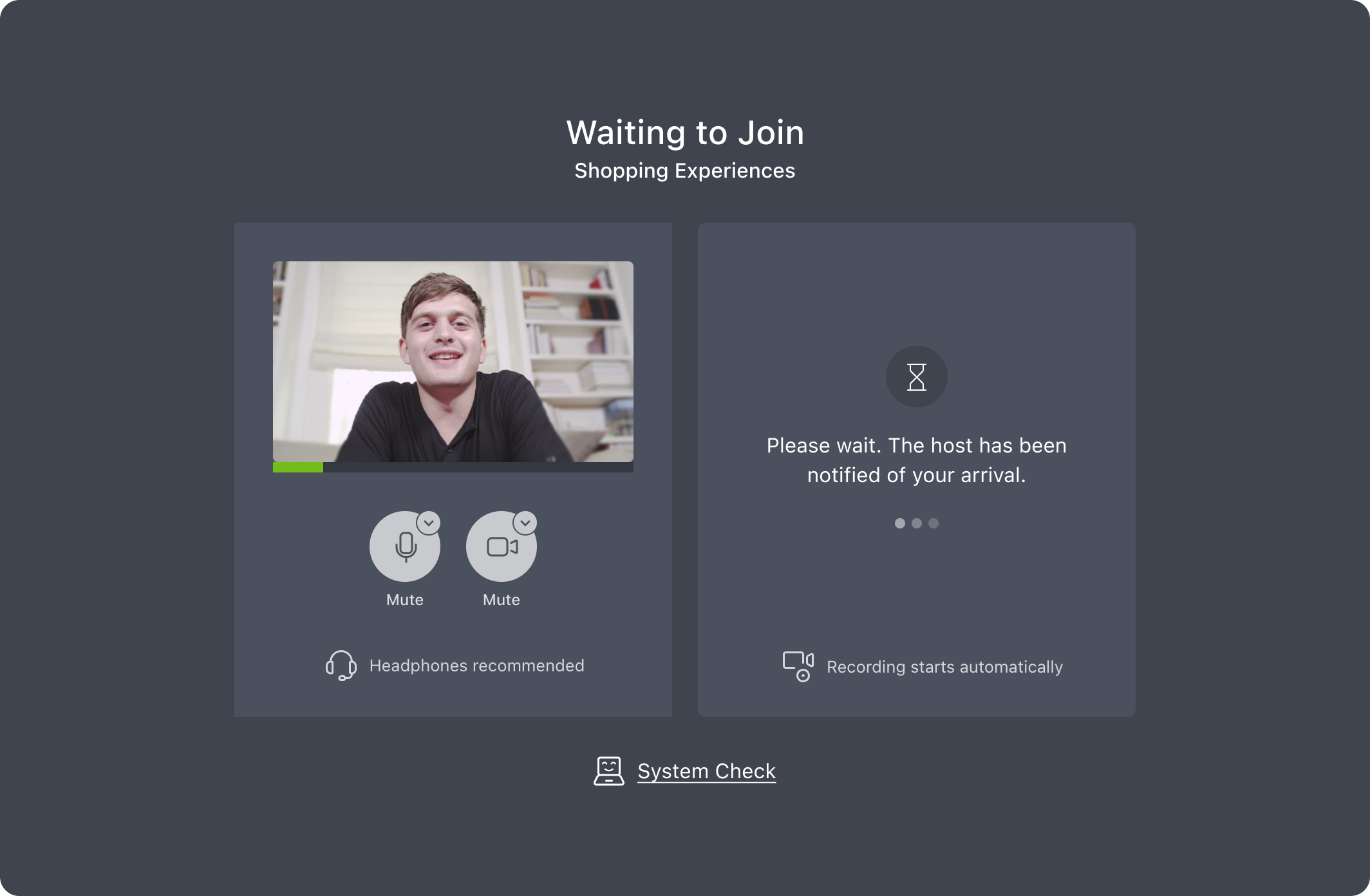
When an attendee joins a meeting with the Waiting Room enabled, they’ll be placed into a waiting area where they will see the Waiting Room message configured during activity setup.
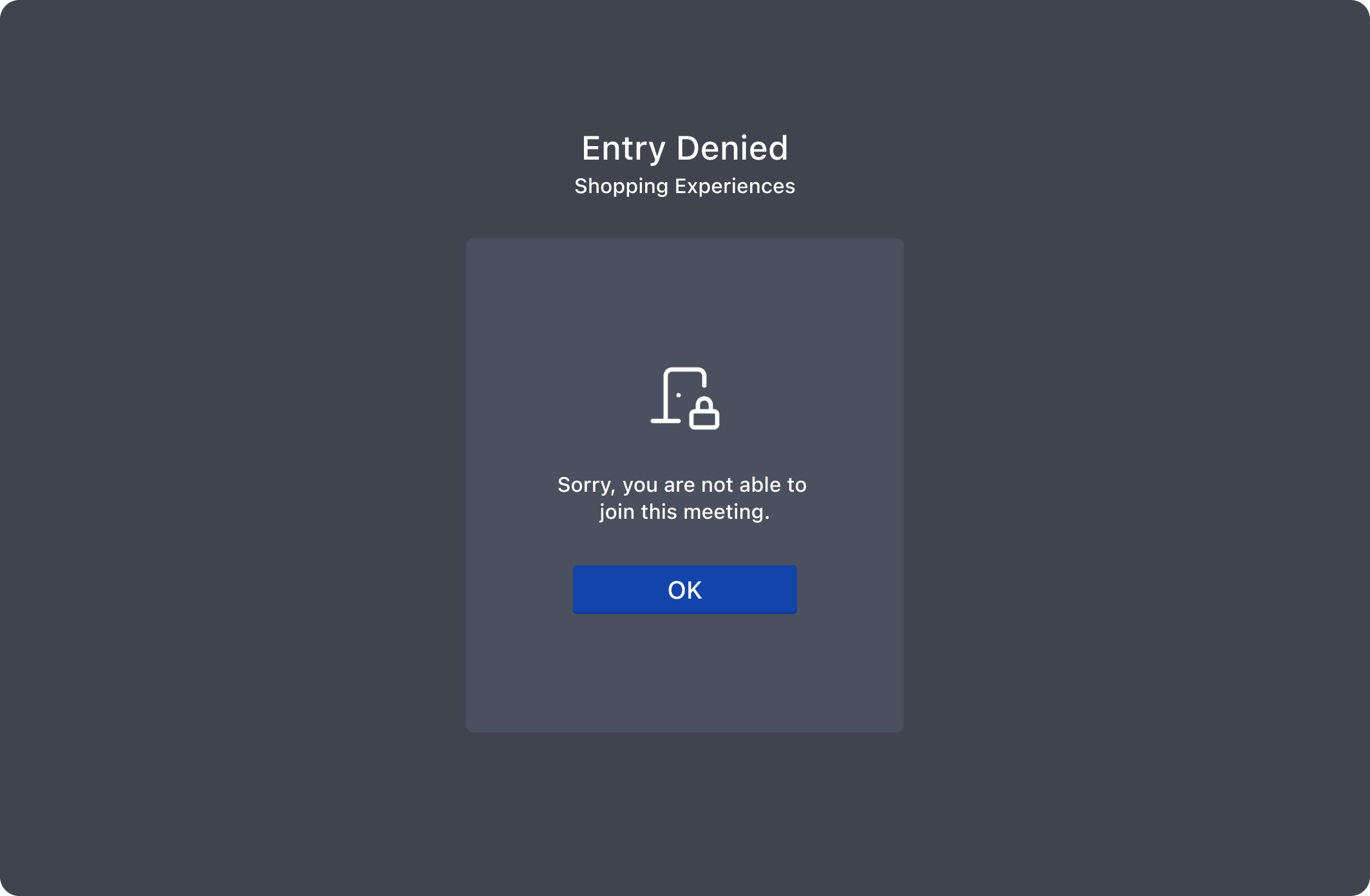
Attendees will remain in the Waiting Room until they’re either admitted or denied entry by an Analyst, Moderator, or Host of the session.
Once admitted:
- Participants enter the front room
- Clients enter the backroom
Waiting Room Controls
Analysts and Moderators can manage the Waiting Room from both the front and backroom during a live meeting, allowing them to admit or deny attendees. Clicking on the checkmark next to their name will admit them into the room, while clicking the X will deny entry. This can be done in bulk by clicking on Admit All or Deny All above their respective role.
The view separates participants and Clients within the Waiting Room panel, making it easier to control the order of entry into the session.
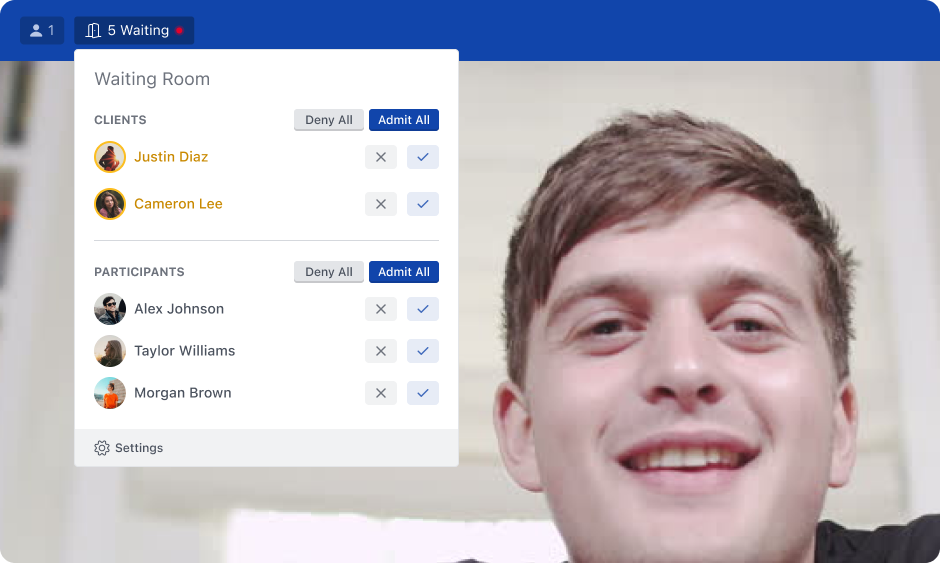
If the Waiting Room panel is ever closed, Analysts and Moderators will still receive notifications when a new attendee arrives.
Analysts and Moderators can also update the Waiting Room settings in real time during the meeting. If they opt to turn the Waiting Room on or off during a session, this will not affect attendees that have already been admitted into the meeting.
Rejoining a Session
Once a participant or client has entered a session, they remain admitted for the rest of that meeting. If they refresh the page, disconnect, leave, or rejoin, they will return directly to the meeting without going through the Waiting Room again.
This also applies to anyone who joined before the Waiting Room was enabled. If they later refresh, disconnect, or rejoin, they will return directly to the meeting.
The Waiting Room only applies to people who have not yet joined or been admitted.
Waiting Room Events in Transcripts
When a Waiting Room is enabled in a live meeting, Analysts and Moderators can choose to show or hide these events within their meeting transcripts.
The transcript captures key Waiting Room actions including the following:
- When the Waiting Room is enabled or disabled during an active session
- When a participant is admitted into the session
- When a client is admitted into the backroom
- When a participant or client is denied entry into a session
You can read more about Live Activity Transcripts and Exports here.