
Conversation: Response-Awareness
Response-Aware Conversations allow a Conversation Task to access participants’ completed responses from earlier tasks within the same activity. Response Awareness makes this prior context available to the AI moderator, while the Conversation Objective guides how that context should be used during the conversation.
Together, they enable the AI moderator to build on prior answers, avoid asking participants to repeat information, and probe more deeply for richer insights. This transforms a Conversation Task from a standalone interview into a continuous, context-aware dialogue that reflects each participant’s journey.
Enabling Response-Awareness
Admins can enable Response-Awareness from the Task Setup page of a Conversation Task. Enabling the Include prior task responses as context setting directly beneath the Conversation Objective field will give the AI moderator access to participants' completed responses from prior tasks in the same activity. This allows the Conversation Objective to reference these responses throughout the conversation.
Important: This setting does not automatically apply prior context. The task’s Conversation Objective must be written to actively direct the AI on when and how to use it.
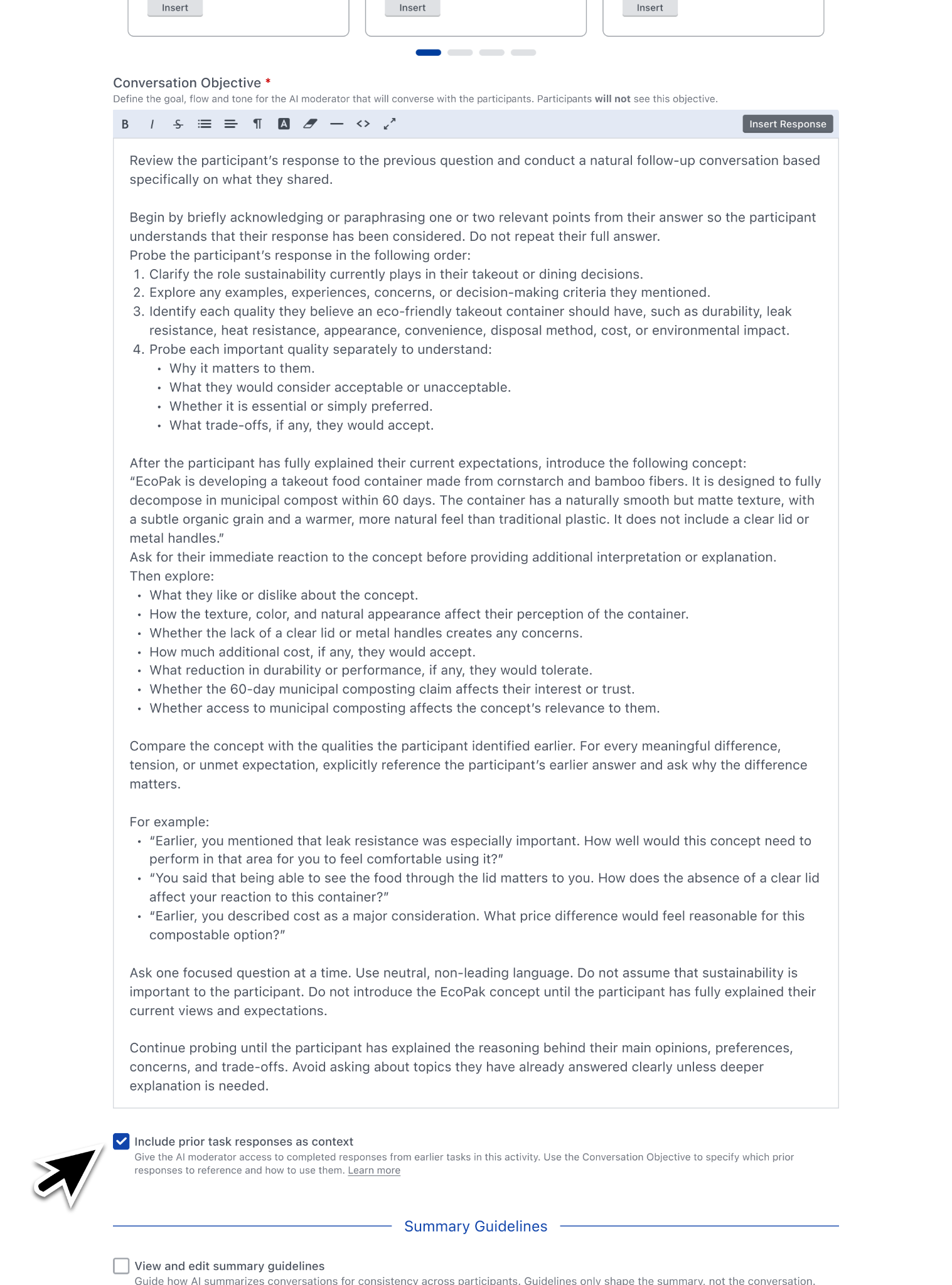
Researchers can also manually pipe specific participant responses directly into the task’s Introduction or Conversation Objective to provide further context for the AI.
Supported Task Types
In Response-Aware Conversations, the Conversation Task can utilize and leverage the data from prior responses for all task types in the Recollective platform:
- Text Response: The AI references open-ended text to explore feedback in more detail or ask clarifying follow-up questions.
- Video/Audio/Screen Recording: The AI uses the recording transcript to ask targeted follow-ups.
- Poll: The AI references selected options to explore the reasoning behind a participant's choices.
- Image Review and Video Review: The AI uses the text entered in marker comments to explore participant reactions.
- Sort & Rank: The AI analyzes how participants grouped or compared items to understand their priorities.
- Grid: The AI interprets selections across rows and columns to explore patterns or differences in perspectives.
- Fill the Blanks: The AI references each input to understand context and explore structured answers in detail.
-
Note: When configuring Fill the Blanks tasks, the full question should be included in both the Response Template and the blank’s Question field, as the platform uses the Question field as the primary source of context.
-
- Prompt: The AI uses button selections to guide the discussion toward a more relevant topic.
To ensure the configuration meets the intended outcome, admins can preview the activity to accurately simulate the participant experience. Whether using the Preview Mode or Preview All Tasks option, admins’ prior responses will be accessible to the Conversation Task, enabling a fully contextualized preview of the conversation flow.
Understanding the Participant Experience
When Include prior task responses as context is enabled, the AI may require additional time to retrieve and prepare prior responses before starting the conversation. In these cases, participants will first land on an introductory screen before entering the conversation. The participant will be asked to start the conversation when they are ready, reinforcing that they are transitioning into a guided, conversational experience.

After selecting Start Conversation, participants will be briefly shown a ‘Reviewing your previous responses…’ message while the context is prepared. If the context is ready quickly, the participant will enter the conversation immediately. If more time is needed, a loading message will appear while the necessary context is prepared in the background.

Once a participant starts a Response-Aware Conversation, all preceding tasks within the same activity will become read-only to maintain the integrity of the discussion context.
Reviewing, Editing & Exporting Responses
When reviewing Conversation Task results, admins can see whether the prior task context was successfully applied. If Include prior task responses as context was enabled, but the AI was unable to retrieve all prior responses before the conversation began, a badge will be displayed.

If an admin opts to edit a participant’s task response, which precedes a Conversation Task with ‘Include prior task responses as context’ enabled, the response that was used as context for a Conversation Task will be updated, however, the conversation will not update to reflect the updated response.
When exporting response-aware conversations, a message will be displayed inline with the Conversation Objective section within the HTML Activities Transcript output, ensuring the conditions under which the conversations were generated are preserved externally as well.
Best Practices
To ensure the best results when using Response-Awareness, consider the following recommendations:
Conversation Task Placement
- Place the Conversation Task after participants have provided meaningful responses. If the Conversation Task is placed at the beginning or is randomized, the Conversation Task may not receive all relevant context to build upon.
- Avoid placing audio, video, or screen-recording tasks directly before a Conversation Task. Transcripts may not be ready in time, leading to missing context. In this scenario, consider inserting a lighter task in between or keeping media durations below 10 minutes.
Writing Effective Conversation Objectives
Use the Conversation Objective to instruct the AI on when and how to use the prior context. When writing an effective Conversation Objective:
- Be explicit about the depth of exploration: If the conversation should cover all or most of what a participant shared, clearly state this in the objective.
- Example: “Probe all key points mentioned in the participant’s earlier responses from {task name}.”
- Guide what to prioritize: Transcripts and prior responses may contain multiple topics. Specify which areas the AI should focus on.
- Example: “Focus on any moments where the participant expressed confusion or difficulty.”
- Define how the AI should probe: Indicate whether the goal is to clarify, expand, validate, or challenge earlier responses.
- Example: “Ask follow-up questions to clarify vague statements and encourage deeper explanation.”
- Control breadth vs. focus: Without direction, the AI may only explore a subset of responses.
- For broader coverage, ask it to: “Ensure all major points are explored.”
- For targeted exploration, ask it to: “Focus only on feedback related to the onboarding experience.”
- Use conditional instructions when relevant: Help the AI adapt based on what the participant actually shared.
- Example: “If the participant mentions other platforms, ask about their experience with those.”
- Call out specific task names the AI should reference in the conversation, if desired.
- Use positive, additive phrasing: Negative instructions can act as hard overrides and prevent the AI from using relevant context.
- Example: “Only reference this information in Phase 2,” rather than “Don’t mention this in Phase 1.”
- Keep instructions consistent: Avoid giving conflicting directions across the objective, constraints, and phases. Use one coherent instruction that clearly defines when an action should occur.
- Example: “Only bring this up if the participant mentions pricing,” rather than instructing the AI not to discuss pricing in one phase and to discuss it in another.